How to Setup Custom Resolution & 144Hz Refresh Rate in Classic PC Games (Tested & 100% Working)
Your retro favorites don't have to be stuck at 1024x768@60Hz. Force custom resolutions and unlock a buttery 144Hz refresh rate in classic PC games with these four tested methods — config tweaks, launch flags, dgVoodoo2, and GPU-level custom modes.
 ATH Team
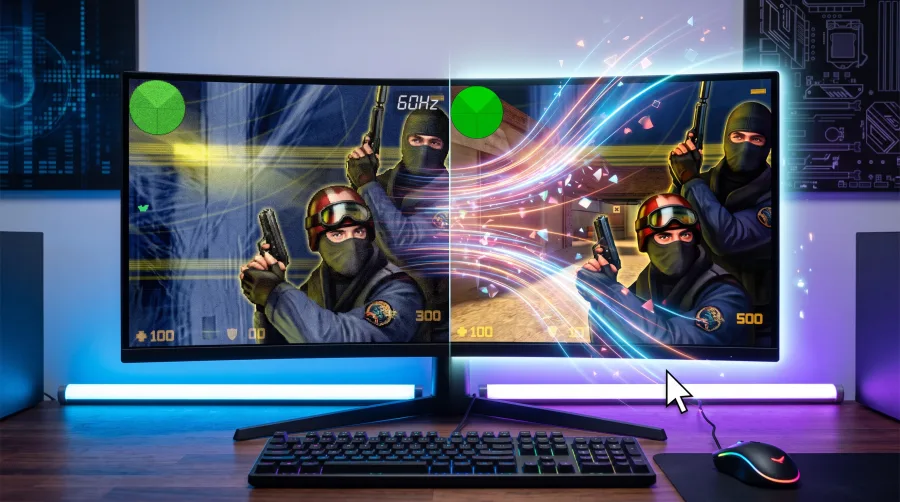
Got a high-refresh monitor but your favorite retro shooter is locked at 60Hz? Classic PC games were built for CRT-era displays, so they hard-cap resolutions and refresh rates. The good news: with a few tweaks, you can force custom resolutions and a buttery 144Hz refresh rate in classic PC games. Tested & 100% working on Windows 10 and 11 — let's get into it.
Why Classic Games Lock Your Refresh Rate
Most pre-2005 titles query DirectDraw or early DirectX for a fixed list of display modes. Your shiny 2560x1440@144Hz panel simply isn't on that list, so the game defaults to 1024x768@60Hz — or worse, crashes on launch. The fix is convincing the game (or Windows) that your custom mode actually exists.
Method 1: Edit the Game's Config File
Follow our simple step-by-step guide — this works for most classics like Quake III, Unreal Tournament, and GTA San Andreas:
- Locate the config file, usually in
Documents\My Gamesor the install folder (look for.inior.cfgfiles). - Open it with Notepad and find lines like
r_mode,width,height, orrefreshrate. - Set your values, e.g.
seta r_customwidth "2560",seta r_customheight "1440",seta r_displayrefresh "144". - Save, then right-click the file → Properties → check Read-only so the game can't overwrite it.
Method 2: Launch Options & Shortcut Flags
Steam and shortcut targets accept forced parameters. Right-click your game → Properties → Launch Options, and add:
-w 2560 -h 1440 -freq 144 -windowedFor non-Steam titles, edit the desktop shortcut's Target field the same way. GoldSrc and id Tech engines respond especially well to -freq 144.
Method 3: dgVoodoo2 (The Real Game-Changer)
For stubborn DirectDraw and DirectX 1–7 games, dgVoodoo2 is a 100% virus-free wrapper that translates old API calls to modern DirectX 11. Drop dgVoodooCpl.exe and the DLLs into the game folder, open the control panel, and force your resolution plus 144Hz under the General tab. Extract and play — no crash issues, and it even fixes alt-tab bugs that plague retro titles.
Method 4: Create a Custom Resolution in Your GPU Panel
- NVIDIA: Control Panel → Change Resolution → Customize → Create Custom Resolution. Set 2560x1440 @ 144Hz, test, save.
- AMD: Adrenalin → Display → Custom Resolutions → Create New.
- Advanced: Use CRU (Custom Resolution Utility) to add the mode directly to your monitor's EDID so every legacy game detects it natively.
Pro Tips & Quick Fixes
- Black screen after forcing 144Hz? Boot in windowed mode first with
-windowed, then switch to fullscreen in-game. - Cap FPS at 144 — some old engines tie physics to framerate and break above it.
- Run the .exe in Windows XP SP3 compatibility mode if your config edits won't stick.
Frequently Asked Questions
Will forcing 144Hz damage my old games?
No — worst case, the game ignores the setting or reverts to 60Hz. Always back up config files before editing.
Why does my game still show 60Hz after editing?
The config is likely being overwritten on launch. Set the file to Read-only, or use dgVoodoo2 to force the mode at the driver level.
Does this work on Windows 11?
Yes. All four methods above are tested & 100% working on Windows 10 and 11, including CRU and dgVoodoo2.
Final Thoughts
Custom resolutions and 144Hz in classic PC games aren't just possible — they're easy once you know where the bottlenecks hide. Start with the config edit, escalate to dgVoodoo2 if needed, and enjoy your retro library the way it deserves: sharp, smooth, and fullscreen.

Comments (0)
No comments yet. Be the first to start the discussion!