How to Set Up a Free AdBlocker on Android and Windows Using NextDNS
Block ads, trackers, and malware domains across Android and Windows with a free NextDNS setup. Follow our simple step-by-step guide for cleaner browsing without installing heavy ad-blocking software.
 ATH Team
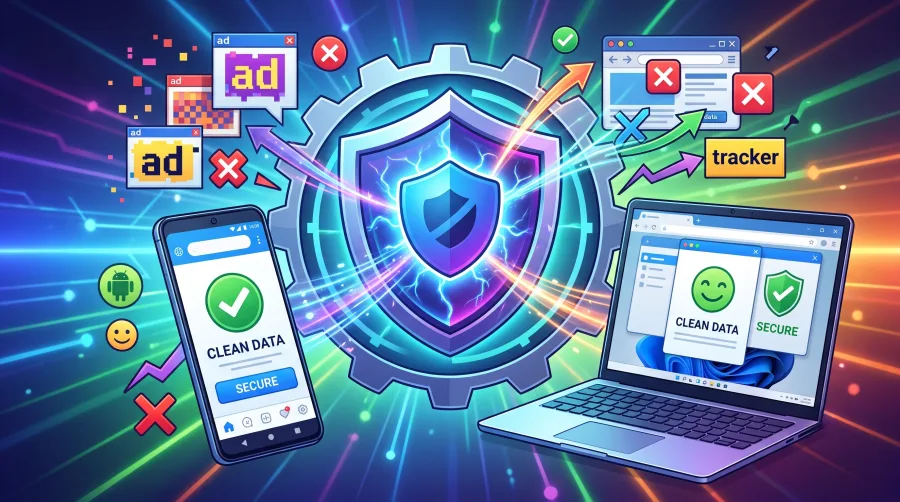
Want fewer ads, faster page loading, and better privacy without installing a bulky browser extension? NextDNS is a powerful DNS-based ad blocker that works across Android and Windows. It blocks many advertising, tracking, analytics, and malware domains before your device connects to them.
This guide shows exactly how to create a free NextDNS profile, configure blocklists, and connect both Android and Windows. The free plan is enough for many personal users, although it has a monthly DNS query limit. Tested & 100% Working on current Android and Windows settings.
Why Use NextDNS as a Free AdBlocker?
Traditional ad blockers usually work inside one browser. NextDNS works at the DNS level, so it can filter requests from browsers, apps, games, and other connected software. It does not require root access on Android or administrator-level system modifications on Windows.
- Blocks advertising and tracking domains across supported apps and browsers.
- Filters known malware, phishing, and suspicious domains.
- Uses a private DNS connection with encrypted DNS support.
- Offers logs, allowlists, denylists, and parental controls.
- Works without repeatedly configuring every browser.
NextDNS will not remove every ad. It cannot reliably block ads hosted on the same domain as the content, and it does not replace antivirus software. For additional background, review the official NextDNS service information before changing your DNS settings.
Step 1: Create a Free NextDNS Profile
- Open the official NextDNS setup dashboard.
- Select Try it now or create a free account.
- Open the Setup tab and copy your configuration ID. It is the unique code linked to your filtering profile.
- Move to the Privacy tab and enable a reputable blocklist, such as OISD or another list recommended by NextDNS.
- Under Security, enable threat intelligence options that suit your needs.
- Open Settings and choose whether to keep query logs. If privacy is your priority, select a short retention period or disable logging.
Do not enable every available blocklist at once. Aggressive lists can break login pages, video players, payment screens, or app features. Start with one reliable list, test your usual websites, and add more only when necessary.
Step 2: Set Up NextDNS on Android
Android 9 and newer include a built-in Private DNS option, making setup quick and clean.
- Open Settings on your Android phone.
- Tap Network & internet, Connections, or a similarly named option. Menu names vary by manufacturer.
- Choose Private DNS.
- Select Private DNS provider hostname.
- Enter
your-ID.dns.nextdns.io, replacingyour-IDwith the configuration ID from your NextDNS dashboard. - Tap Save, then reconnect Wi-Fi or mobile data.
To confirm the connection, return to the NextDNS dashboard and open the setup or analytics page. You can also visit the official NextDNS connection test. If Android reports that the network has no internet, check the hostname carefully and temporarily switch Private DNS back to Automatic to test your connection.
Step 3: Set Up NextDNS on Windows
Windows can use NextDNS through its official application or manual DNS settings. The application is easier because it links your device to your profile and handles encrypted DNS automatically.
Recommended Method: NextDNS App
- Download the official NextDNS client for Windows from the NextDNS website.
- Install the application and launch it from the Start menu or system tray.
- Enter your NextDNS configuration ID when prompted.
- Turn the protection switch on.
- Open a browser and visit several websites to test loading, advertisements, and sign-ins.
Manual DNS Method
- Press
Windows + R, typencpa.cpl, and press Enter. - Right-click your active Wi-Fi or Ethernet connection and select Properties.
- Choose Internet Protocol Version 4 (TCP/IPv4), then select Properties.
- Enter the NextDNS IPv4 addresses shown in your dashboard.
- Repeat the process for IPv6 if your network uses it.
- Click OK, restart your browser, and test the connection.
Manual DNS settings may not apply your personal blocklists unless you use the profile-specific addresses or client. For the most reliable result, use the NextDNS Windows application and confirm that your configuration ID is connected.
Quick Fixes for NextDNS Problems
- Ads still appear: Clear the browser cache, restart the app, and check that the correct profile ID is active.
- A website breaks: Add its domain to the NextDNS allowlist instead of disabling protection everywhere.
- Internet stops working: Return DNS to Automatic, verify the hostname, and try again.
- Windows ignores DNS: Flush the resolver cache by opening Command Prompt and running
ipconfig /flushdns. - Android apps behave strangely: Some apps use their own DNS or encrypted connection and may bypass filtering.
Frequently Asked Questions
Is NextDNS completely free?
NextDNS provides a free monthly allowance of DNS queries. Light personal use may fit within that allowance, while several devices or heavy streaming can use it quickly. Check your dashboard for current usage.
Does NextDNS block YouTube ads?
Usually not consistently. YouTube often serves advertising from the same infrastructure as video content, which DNS filtering cannot safely separate.
Is NextDNS an antivirus?
No. NextDNS can block many known malicious domains, but it cannot inspect every downloaded file. Keep Windows Security or another trusted antivirus enabled.
Can I use NextDNS on both Android and Windows?
Yes. Use the same profile on both devices or create separate profiles when you want different blocklists, logs, or allowlists.
Final Verdict
NextDNS is one of the easiest ways to add system-wide ad and tracker blocking without rooting Android or modifying Windows with complicated tools. Create your profile, choose sensible blocklists, connect Android through Private DNS, and use the Windows client for the smoothest setup. Follow our simple step-by-step guide, test your regular apps, and add exceptions only when needed. Extract and Play is not required here—just connect, browse, and enjoy a cleaner internet with fewer distractions.

Comments (0)
No comments yet. Be the first to start the discussion!