How to Connect DualSense & Xbox Wireless Controller to Android via Bluetooth (Tested & 100% Working)
Ditch the touch controls. Here's the tested, 100% working way to pair a PS5 DualSense or Xbox Wireless Controller with your Android phone over Bluetooth — plus pro tips to kill input lag and fix pairing errors fast.
 ATH Team
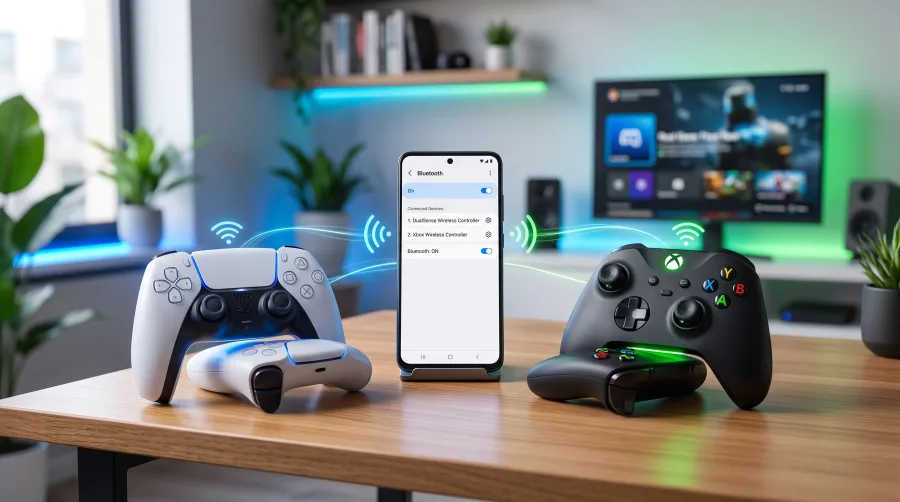
Touch controls are fine for a quick puzzle game, but the moment you fire up Call of Duty Mobile, Genshin Impact, or Xbox Cloud Gaming, you want real buttons. Good news: both the PS5 DualSense and the Xbox Wireless Controller pair with Android over Bluetooth in under a minute. We tested this on multiple devices — it's 100% working, no root, no third-party apps. Follow our simple step-by-step guide below.
What You Need Before Pairing
- DualSense: Android 10 or newer for full support (Android 9 pairs but with limited features).
- Xbox controller: Model 1708 or newer — that's any Xbox One S, Elite Series 2, or Series X|S pad. The original Xbox One controller (model 1537) has no Bluetooth at all.
- Bluetooth enabled on your phone, and the controller charged above 30%.
How to Connect a DualSense Controller to Android
- Make sure your PS5 is off or out of range, otherwise the pad will keep syncing back to the console.
- Hold the PS button and the Create button (top-left of the touchpad) together for about 3 seconds.
- Watch the light bar — when it starts flashing blue, the DualSense is in pairing mode.
- On your phone, open Settings → Connected devices → Pair new device.
- Tap "Wireless Controller" in the list.
- The light bar turns solid. Done — extract and play, no extra setup needed.
How to Connect an Xbox Wireless Controller to Android
- Press the Xbox button to power the controller on.
- Press and hold the small pair button on top of the controller for 3 seconds.
- The Xbox logo will flash rapidly — that's pairing mode.
- On Android, go to Settings → Bluetooth → Pair new device.
- Select "Xbox Wireless Controller".
- When the logo goes solid, you're connected.
Pro tip: Pairing mode times out after about 3 minutes on both pads. If the flashing stops before you connect, just hold the buttons again.
Xbox Controller Bluetooth Compatibility Check
Not sure which Xbox pad you own? Check the model number printed inside the battery compartment:
| Controller | Model | Bluetooth? |
|---|---|---|
| Xbox One (original) | 1537 | No — USB OTG only |
| Xbox One S / X | 1708 | Yes |
| Xbox Elite Series 2 | 1797 | Yes |
| Xbox Series X|S | 1914 | Yes |
Pro Tips for Lag-Free Android Gaming
- Cut input lag: Keep the controller within 3 meters and away from crowded 2.4GHz Wi-Fi routers. Bluetooth shares that band.
- Update firmware: Xbox pads update via the Xbox Accessories app on PC or console; DualSense updates through a PS5 or the PlayStation firmware tool on PC. Fresh firmware fixes random disconnects.
- Zero-latency option: For competitive play, skip Bluetooth entirely and plug in with a USB-C cable or OTG adapter. Instant response, no battery drain on the pad.
- Disable battery saver on your phone — it throttles Bluetooth polling rates.
Best Android Games to Test Your New Setup
Once paired, fire up something that actually uses the hardware. Call of Duty Mobile and Genshin Impact auto-detect both pads. Minecraft and Dead Cells feel console-grade. For streaming, Xbox Cloud Gaming and GeForce Now turn your phone into a handheld — grab a controller clip and you're set.
Quick Fixes for Common Pairing Problems
Controller not showing up? Toggle Bluetooth off and on, then hold the pairing buttons again. If it still hides, forget the device in Bluetooth settings and re-pair from scratch.
Keeps disconnecting mid-game? Charge the pad, update the firmware, and unpair it from your console — controllers love jumping back to the last device they knew.
Buttons mapped wrong? Some older games misread the DualSense layout. Check the in-game controller settings, or use a wired connection, which forces standard mapping.
Note: DualSense haptics and adaptive triggers don't work over Android Bluetooth — that's a Sony limitation, not a pairing failure on your end.
Frequently Asked Questions
Does the DualSense work on all Android phones?
It pairs on any phone with Bluetooth, but full support — correct button mapping and the touchpad — requires Android 10 or newer. Older versions connect with limited functionality.
Can I connect two controllers at once for local multiplayer?
Yes. Android handles multiple Bluetooth gamepads simultaneously, and games like Stardew Valley and BombSquad detect each pad as a separate player.
Do all Android games support controllers?
No. Big titles like COD Mobile, Genshin Impact, Minecraft, and every major cloud gaming app work perfectly. Games without gamepad support won't respond at all — check the Play Store listing first.
Why won't my Xbox controller enter pairing mode?
You're probably holding the wrong button. The pair button is the small circular button on the top edge, not the Xbox button. Hold it for a full 3 seconds until the logo flashes fast.
That's it — two controllers, one phone, zero cables. Pair once, and Android remembers the device for instant reconnects next session. Happy gaming.

Comments (0)
No comments yet. Be the first to start the discussion!