How to Build a Portable Windows To Go USB Drive with Rufus
Create a bootable portable Windows USB drive with Rufus. Follow this simple guide to install Windows on an external USB SSD, boot it on compatible PCs, and fix common startup problems.
 ATH Team
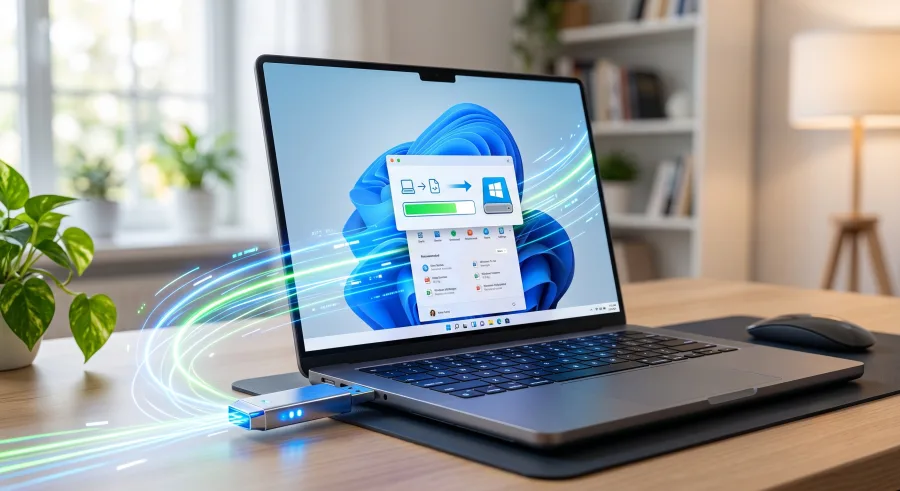
Want to carry your own Windows installation in your pocket? A Windows To Go USB drive lets you boot a portable Windows workspace from compatible computers without installing the operating system on their internal storage. It is useful for troubleshooting, testing software, accessing a familiar setup, or using Windows on a spare PC.
Rufus makes the process straightforward, but many guides skip key details such as USB speed, UEFI settings, edition compatibility, activation, and first-boot fixes. This complete guide covers the full process. Follow our simple step-by-step guide and you can build a reliable portable Windows drive in one session.
What You Need Before Creating Windows To Go with Rufus
- A USB drive: Use a 64GB or larger USB 3.0 drive. An external USB SSD is much faster and more reliable than a cheap flash drive.
- A Windows ISO file: Download Windows 10 or Windows 11 from Microsoft's official download page.
- Rufus: Download the latest version from the official Rufus website.
- A working Windows PC: Rufus runs on Windows and requires administrator permission to format the target drive.
- A backup: The USB drive will be completely erased, so copy important files elsewhere first.
Warning: Do not use a USB drive containing personal files. Rufus will permanently delete its existing partitions and data during setup.
Step 1: Download the Windows ISO and Rufus
Download the Windows ISO directly from Microsoft to reduce the risk of modified or infected installation files. Avoid random ISO mirrors and suspicious “pre-activated” editions. After downloading Rufus, open it from the official portable executable or install it normally.
For safer results, scan the ISO and Rufus file with Windows Security before using them. This keeps the process close to our 100% Virus-Free standard, provided your downloads come from trusted official sources.
Step 2: Connect the USB Drive
Plug your USB drive or external SSD into a fast USB 3.x port. Avoid hubs where possible. Rufus may identify the drive by its model and capacity, so check the Device field carefully. Selecting the wrong drive can erase another disk.
Step 3: Configure Rufus for Windows To Go
- Launch Rufus as an administrator.
- Choose your target USB drive under Device.
- Click Select beside Boot selection and open your Windows ISO.
- Wait for Rufus to read the image. Open the Image option menu.
- Select Windows To Go, not Standard Windows installation.
- Choose the correct Partition scheme. Select GPT for modern UEFI computers. Choose MBR only if you need legacy BIOS compatibility.
- Leave the file system as NTFS unless Rufus recommends another option.
- Click Start.
Rufus may display a Windows edition selection window. Pick the edition supported by your license, such as Home or Pro. On some Windows 11 images, Rufus also shows options to bypass hardware checks. These can help with installation media, but they do not guarantee that every computer will run Windows 11 correctly or receive full support.
Step 4: Confirm the Format and Create the Drive
Rufus will show a final warning that all data on the selected USB drive will be destroyed. Confirm the warning only after checking the device name and capacity. The writing process can take several minutes or longer, especially with a slow flash drive.
When the status changes to READY, safely eject the drive. Your portable Windows workspace is now prepared. This is an Extract and Play-style setup: there is no archive to unpack, but you must complete Windows setup during the first boot.
Step 5: Boot Windows To Go from USB
- Insert the portable Windows USB drive into the computer you want to use.
- Restart the computer and open its boot menu. Common keys include
F12,F9,Esc, orF8. - Select the USB storage device marked as a UEFI option when available.
- Complete the Windows first-run setup, including language, keyboard, network, and user account settings.
The first startup may take longer because Windows detects the computer's hardware and installs drivers. Allow several minutes before assuming the drive has failed. Once loaded, Windows To Go behaves like a normal installation, although performance depends heavily on the USB drive and host computer.
Best Performance and Safety Tips
- Use an external SSD for faster boot times, smoother updates, and fewer freezing issues.
- Keep at least 20GB of free space for updates and temporary files.
- Always shut down Windows before removing the drive. Unplugging it during use can corrupt the installation.
- Enable BitLocker or another encryption method if the drive contains private files.
- Do not expect every computer to activate Windows automatically. Activation depends on your valid digital license or product key.
- Keep a second backup of important portable-workspace files.
Fix Common Windows To Go and Rufus Problems
Rufus does not show Windows To Go
Install the latest Rufus release and confirm that you selected a genuine Windows ISO. Some customized images do not support the Windows To Go option. Try an official Windows 10 or Windows 11 ISO and reconnect the USB drive directly to the PC.
The computer skips the USB drive
Open the boot menu instead of relying on the default boot order. Try another USB port, select the UEFI entry, and temporarily disable Fast Boot. If the computer uses legacy BIOS, recreate the drive with MBR instead of GPT.
Windows shows a blue screen or freezes
Slow or failing flash storage is the usual cause. Test the drive on another port, update the host computer's firmware, and recreate the workspace on an external SSD. No crash issues can be expected on every machine, because hardware and driver compatibility varies.
Frequently Asked Questions
Can I use any USB drive for Windows To Go?
Use a 64GB or larger USB 3.0 drive, but an external SSD is strongly recommended. Cheap flash drives may boot slowly, overheat, or fail under constant Windows read and write activity.
Does Windows To Go work on every computer?
No. The computer must support USB booting and provide compatible firmware, drivers, and hardware. UEFI systems usually offer the smoothest experience.
Will this portable Windows installation be activated?
Activation depends on your Windows license. Rufus creates the portable installation but does not provide a license or bypass legitimate activation requirements.
Final Verdict
Rufus remains one of the easiest ways to create a portable Windows To Go USB drive from an official ISO. Use a fast external SSD, double-check the target device, select Windows To Go, and boot through the correct UEFI menu. With those steps covered, you get a practical, reusable Windows workspace for repairs, testing, and travel.

Comments (0)
No comments yet. Be the first to start the discussion!